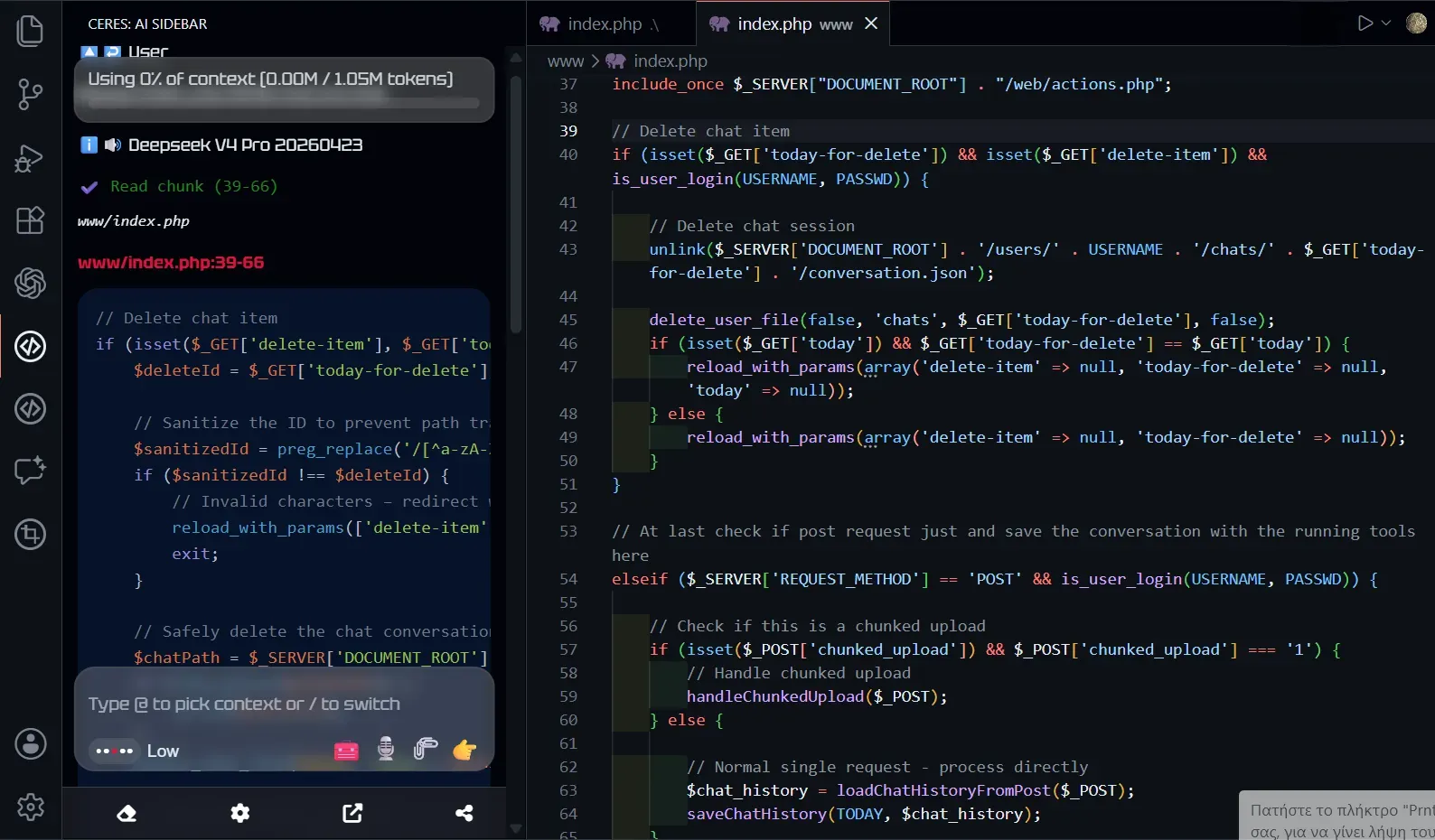
Today we are releasing the beta version of Ceres Assistant for Visual Studio Code. You can install it directly from the Visual Studio Marketplace and bring focused AI assistance into your everyday coding environment.
Ceres keeps an AI assistant close to your code, files, errors, terminal output and debugging work without taking control of the entire project.
Focused AI assistance inside VS Code
Ceres adds a dedicated AI sidebar to VS Code, so you can ask questions and work with development context without constantly switching to a browser or another application.
The assistant stays close to the code you are already working on. You choose the relevant context, ask a focused question and receive an answer based on the information you provide.
Ceres is designed for developers who want AI nearby without turning every request into a large autonomous task.
Add files and selected code
You can send a complete file to Ceres or add only the code currently selected in the editor.
This gives you control over the information included in the conversation. Instead of sharing the entire project for a small question, you can provide only the function, class or file related to the task.
Use Ceres to understand unfamiliar code, investigate a possible bug, review an implementation, explain a function or prepare a focused improvement.
Understand errors and diagnostics
Errors and warnings from the VS Code Problems panel can be added to Ceres together with the relevant code.
This makes it easier to investigate compilation problems, warnings and broken behavior without manually copying every error message and searching for the related file.
Ceres can explain what the error means, identify likely causes and suggest what you should inspect next.
Terminal and debugging context
Ceres can help you understand recent terminal activity, failed commands and debugging information connected to your current work.
These tools are used to read and explain the available context. Ceres helps you reason about the problem while you remain in control of the terminal and the project.
This is useful when a command fails, an application produces an unexpected error or you need help connecting terminal output to the code that caused it.
Use your voice while coding
Ceres includes voice input directly inside the VS Code sidebar. You can dictate a prompt, describe a bug or explain a technical problem without typing the complete request.
Voice input is useful for longer instructions, debugging notes and follow-up questions that are easier to explain naturally.
You can speak your prompt, review the recognized text and send it when it is ready.
Review suggestions before using them
Ceres can provide focused code suggestions based on the files, selected code and errors you include in the conversation.
The suggestion remains under your control. You can review the response, compare it with the existing implementation and decide whether you want to use it.
Ceres is designed to assist your decisions, not silently make project-wide changes behind your back.
Bring your own AI provider
The beta supports your own API key and compatible AI endpoint. You can choose the provider and model that fit your work and budget.
You can connect services such as OpenRouter, OpenAI and DeepSeek, along with other providers that offer an OpenAI-compatible API.
This means that Ceres does not lock you into a single model or bundled AI subscription. You remain responsible for the provider, model and project context used in each conversation.
We test the beta with DeepSeek V3 for coding questions, code explanations, debugging help and focused suggestions inside VS Code.
A lighter alternative to autonomous coding agents
Many AI coding tools are designed to inspect large parts of a project, run multiple tools and make changes automatically.
That approach can be useful for large autonomous tasks, but it can also consume more tokens, introduce unnecessary context and make the final result harder to follow.
Ceres follows a smaller and more predictable workflow. You provide the context, ask the question, review the answer and decide what happens next.
Who is Ceres for?
Ceres is a good fit for developers who want:
- Control over the context sent to the AI
- Focused answers with lower token usage
- The freedom to use their own API key
- Voice input inside VS Code
- Help understanding errors and debugging problems
- An AI assistant without a full autonomous agent workflow
Install Ceres from the Visual Studio Marketplace
You can install Ceres directly from VS Code:
- Open the Extensions view.
- Search for Ceres Assistant.
- Select Install.
- Open the Ceres sidebar.
- Add your preferred AI provider and API key in the settings.
You can also open the Ceres Visual Studio Marketplace page and install it from there.
Practical AI help for the code in front of you
Ceres fills the space between a fully manual coding workflow and a large autonomous coding agent.
It keeps AI close to your editor, lets you choose the relevant context and gives you focused assistance that you can review before using.