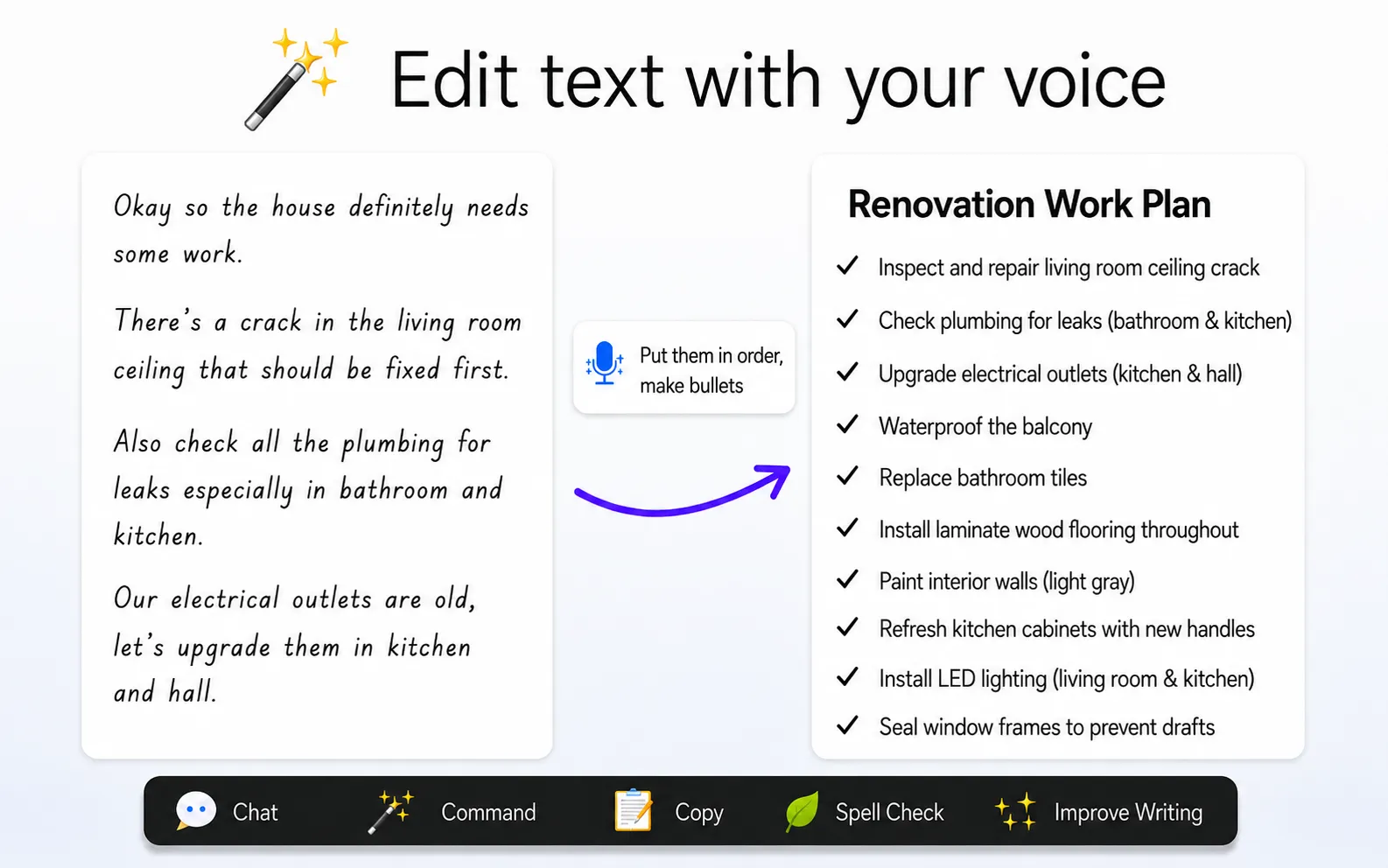
Voice commands can be used to edit text directly inside the browser. This tutorial explains how to use the magic wand button to give an instruction and apply the result to the text you are working on.
You can download Ceres from the Chrome Web Store. Ceres can use on-device AI on supported computers, so some writing actions can run locally in the browser.
How voice editing works
Place the cursor in a text field or select the text you want to change. Press the magic wand button and start speaking. Describe the result you want in natural language, such as correcting a sentence, making a paragraph shorter or changing its tone.
The instruction does not need to follow a fixed format. You can explain the change as you would explain it to another person. For example, you can ask for a grammar correction, a clearer version, a translation or a more formal message.
Editing text in the same field
After the voice instruction is processed, the edited text is inserted into the same field. This means that the text does not have to be copied into a separate writing application. The workflow can be used in emails, messages, online forms, documents and other browser-based editors.
The feature combines speech input with text editing. Instead of only transcribing the spoken words, it uses the instruction to change the text according to the requested action.
Examples of voice instructions
Voice commands can be used for common editing tasks, including correcting spelling and grammar, rewriting a paragraph, shortening a message, organizing rough notes, changing the tone or translating the text.
You can also speak an unfinished idea and ask for it to be turned into a more structured version. The exact result depends on the instruction, the selected text and the AI model being used.
Using the feature in the browser
The magic wand is available next to supported text fields. Pressing it starts the voice interaction, while the surrounding writing tools can be used for other actions such as rewriting, translation and text improvement.
For more information about the browser writing tools and voice features, see the Ceres Browser page.