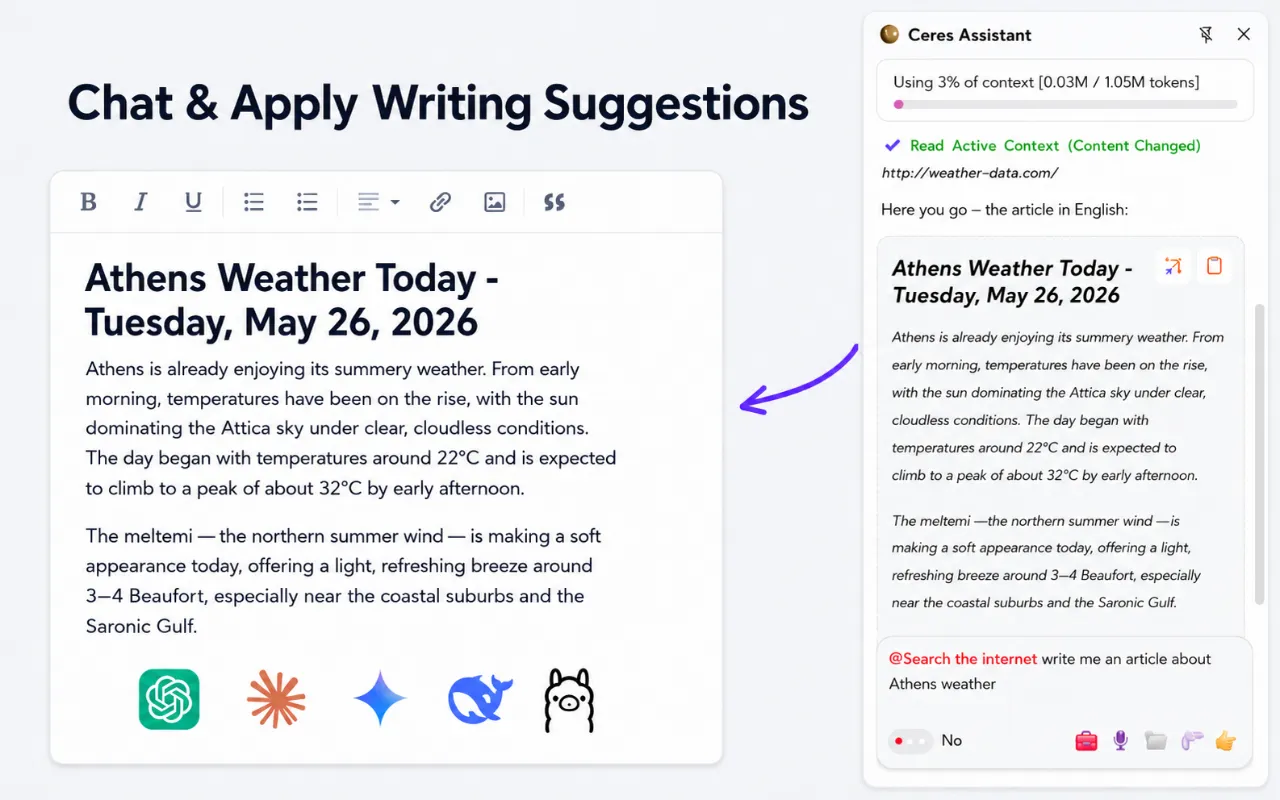
Ceres Browser plugin is now available. You can now bring practical AI assistance into the browser you already use for reading, writing, emails, messages and everyday online work.
If you already use Ceres inside VS Code, you can now use a separate version of Ceres designed specifically for the browser.
You can download Ceres Browser from the Chrome Web Store.
Ceres beyond VS Code
Ceres for VS Code helps developers work with code and project information. Ceres Browser is designed for the websites and online tools you use every day.
It can help you understand a page, summarize information, improve your writing and prepare better responses without constantly copying text into another application.
The browser plugin is a separate version of Ceres. You can use the browser and VS Code extensions independently, depending on what you are working on.
Ask questions about the page in front of you
Open the Ceres sidebar while viewing a webpage and ask questions about the content in front of you.
You can ask Ceres to explain a difficult section, identify the main points, prepare a short summary or help you understand information more quickly.
This is useful for long articles, documentation, product pages, reports, online guides and other pages that contain more information than you need.
Work with selected text and open tabs
Ceres can use selected text, the current page and open browser tabs as context for your conversation.
Instead of copying information from several tabs into a new document, you can keep the relevant pages open and ask Ceres to help you work with them.
You remain in control of the information you include. Add the page or text that matters to your question and leave unrelated content outside the conversation.
Find and understand information
Ceres can help you search for information and work with the results inside the browser.
You can use it to compare information, prepare a short overview or continue researching a subject without repeatedly moving between search pages and separate AI applications.
Ceres can also help with local documents and other supported content when you need more context for your question.
Speak your prompts with Ceres Pro
Ceres Pro lets you speak your prompts instead of typing them inside the sidebar.
Voice input is useful when your question is long, when you want to describe an idea naturally or when typing interrupts what you are doing.
Speak your prompt, review the recognized text and send it when you are ready.
You can get Ceres Pro from Gumroad.
Write better everywhere with Ceres Pro
Ceres Pro includes Voice Rewrite for text fields inside the browser.
Select the text you want to change, press the magic wand and describe the result you want. Ceres can rewrite the text directly where you are already working.
You can use Voice Rewrite to:
- Correct spelling and grammar
- Make a message shorter
- Expand a rough idea
- Change the tone of an email
- Translate a response
- Turn spoken thoughts into clearer writing
- Prepare a more professional version of a message
Voice Rewrite can be useful in emails, online documents, messages, forms, support tools and other websites where you write text.
Create your own Writing Buttons with Ceres Pro
Ceres Pro also lets you create custom Writing Buttons for actions you use regularly.
For example, you can create buttons such as:
- Fix grammar
- Make it shorter
- Make it more professional
- Translate to English
- Turn this into bullet points
- Write a friendly reply
- Simplify this paragraph
Give the button a name, write the instruction once and reuse it whenever you select text inside the browser.
Custom Writing Buttons help reduce repetitive work and let you create a writing toolbar that fits the way you communicate.
Use built-in AI or your preferred provider
On supported computers, Ceres can use AI built into the browser for selected writing actions. This allows some work to happen directly on your computer without requiring an additional AI account.
You can also connect your preferred AI provider when you want access to different or more powerful models.
Ceres works with services such as OpenRouter, OpenAI, Claude, Gemini, Mistral, Mercury, DeepSeek and Kimi, along with other compatible providers.
You choose the provider and model that fit your needs.
Built-in summaries and translation
Ceres can use browser features for everyday actions such as summarizing pages, recognizing languages and translating text.
This can help you understand long content more quickly and work with pages or messages written in another language.
Availability may depend on your browser and computer. If built-in AI is not available, you can connect a supported AI provider from the Ceres settings.
Install Ceres from the Chrome Web Store
You can install Ceres Browser in a few steps:
- Open the Ceres Browser page in the Chrome Web Store.
- Select Add to Chrome.
- Confirm the installation.
- Open Ceres from the browser toolbar.
- Pin the extension if you want faster access.
- Follow the setup instructions.
- Check whether built-in AI is available or connect your preferred AI provider.
After installation, open Ceres while visiting a webpage and start a conversation about the page in front of you.
Made for everyday browser work
Ceres Browser is designed to stay close to the work you are already doing.
It can help you read a long page, understand information, prepare a response and work with browser context without opening a separate application.
Use the browser plugin for AI chat, page context and everyday assistance. Ceres Pro unlocks Voice Speak, Voice Rewrite and your own custom Writing Buttons.
Get Ceres Browser from the Chrome Web Store.
Unlock Voice Speak, Voice Rewrite and Custom Writing Buttons with Ceres Pro.