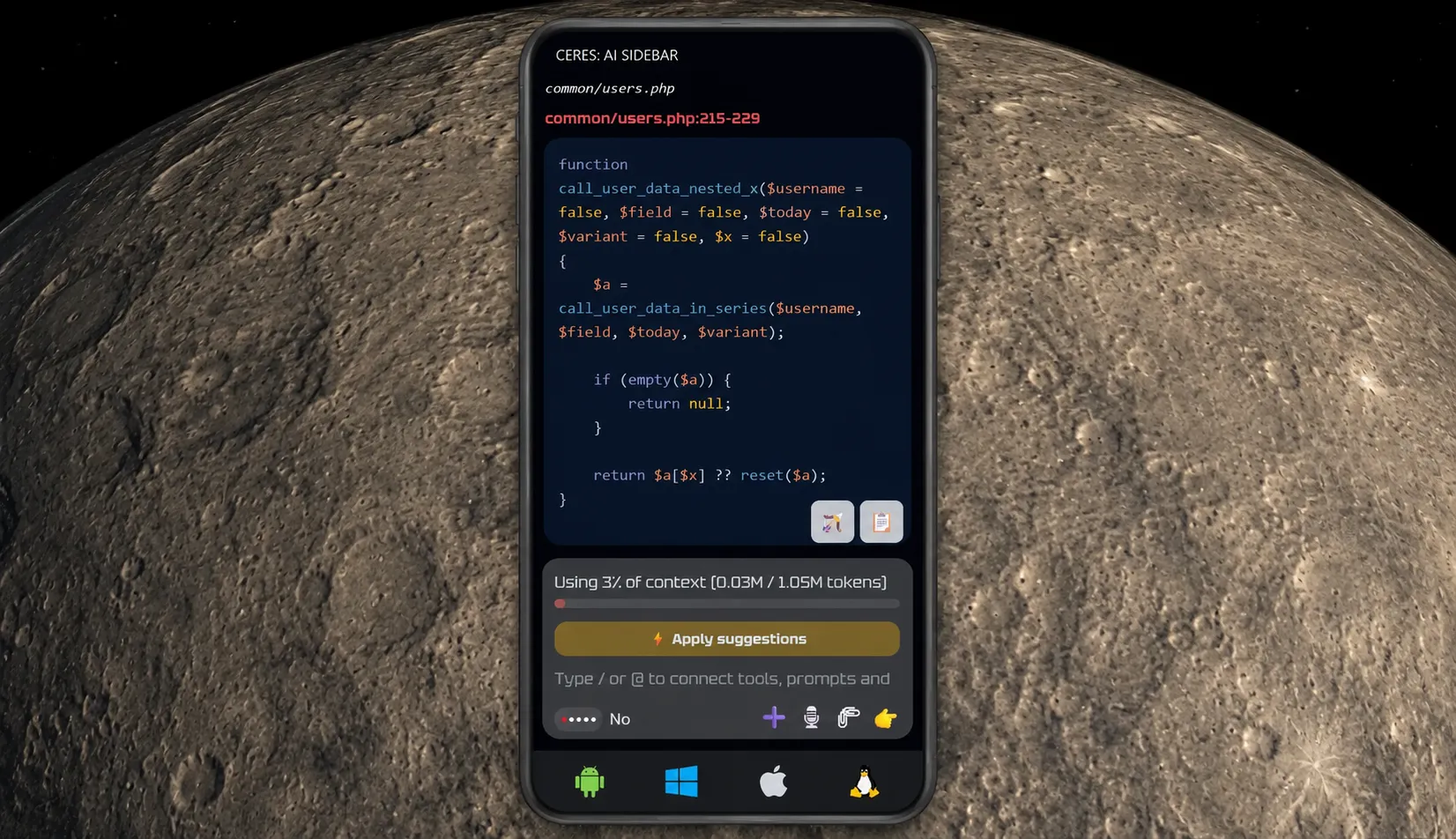
Ceres Assistant is now available as an app on Android. Install it on your phone, open it from your home screen and use it like any other app you already have.
No need to look on Google Play — Ceres installs directly from ceres-assistant.com in Google Chrome with a single tap.
An AI assistant in your pocket
Ceres on your phone gives you a dedicated AI assistant that is always ready. Tap the icon on your home screen and Ceres opens instantly — your conversations, your settings, everything exactly as you left it.
There is no browser to deal with, no tabs to find, no login screen to get through. You open Ceres the same way you open any other app and start where you left off.
Use it wherever you are
Ask a question while commuting. Continue a conversation you started on your computer. Brainstorm an idea between meetings. Improve a message before you send it. Write or review a piece of code while you are away from your desk.
Ceres works the way you expect an app to work — it is there when you need it, it remembers everything and it stays out of your way when you do not.
Write and code with AI — on your phone
With Ceres you can write, improve text, brainstorm ideas and work with code — all from your phone. Ask Ceres to help you draft something, explain a concept, review a function or rewrite a paragraph. It handles everyday writing and coding tasks the same way it does on a computer.
On supported devices, Ceres can use Gemini Nano — the AI built directly into Chrome — to handle requests right on your device, without sending anything over the internet. That means AI assistance even without a connection.
When you are online, use any AI provider you prefer — Gemini, ChatGPT, Claude or any other service you already have access to. You choose the AI that works best for you.
Works offline
After you open Ceres for the first time, the app saves everything it needs on your device. From that point on, it opens and works even without an internet connection.
Your conversations are always there. Your settings are always there. The full interface is always there. Cloud AI features need a connection, but the app itself and everything you have saved is available anytime.
Saves automatically
There is nothing to save manually. Ceres keeps your conversations and settings automatically. Close the app, restart your phone, come back a week later — everything is still there.
How to install
Open ceres-assistant.com in Google Chrome on your Android phone.
- A Tap to install bar appears at the top of the page — tap it.
- Confirm when prompted.
- The Ceres icon appears on your home screen, ready to use.
That is all. No app store, no download, no account required.
How to uninstall
Long-press the Ceres icon on your home screen and select Uninstall, just like any other app.
Also available on Windows, macOS and Linux
Ceres can also be installed on your computer — on Windows, macOS or Linux. Open ceres-assistant.com in Google Chrome, click Tap to install and Ceres is added to your desktop, Start menu or Dock. It runs in its own window, saves automatically and works the same way it does on your phone.
Ceres uses Progressive Web App (PWA) technology, which allows it to be installed directly from the browser and work offline on any supported device.